neoEXE
This lightweight application allows you to package your web apps into standalone Windows executables (.exe) effortlessly. Whether your app is hosted online or compiled locally, neoEXE makes deployment and distribution easy, modern, and compact. And it works with any web app, not only with VisualNEO Web generated ones!
What is neoEXE for?
neoEXE offers two ways to package your web applications:
- Local web app (zipped): Simply select a zipped folder containing your web app’s files (HTML, JavaScript, CSS, images, etc.) and neoEXE will embed everything into a single .exe file.
- Hosted web app: If your app is hosted on a web server, use the Start URL option to package it. Just leave the “Source file (.zip)” field empty and provide the URL of your web app. This creates an .exe that acts as a launcher for your hosted application, while still offering the flexibility of a desktop app.
Why choose neoEXE?
- Powered by WebView2: neoEXE uses Microsoft’s WebView2 technology, ensuring your app runs on a modern, high-performance browser engine. WebView2 is already present on Windows 10 and 11, so no additional setup is required.
- All-in-one packaging: For local apps, all resources are fully embedded into the .exe file—no need for external files or additional dependencies.
- Customizable experience: Adjust window size, title, icon, and behavior (e.g., fullscreen, resizable, frameless, etc.) to suit your app’s needs.
- Future-proof deployment: Whether you prefer local packaging or hosted solutions, neoEXE provides flexibility to match your app’s distribution strategy.
How does it work?
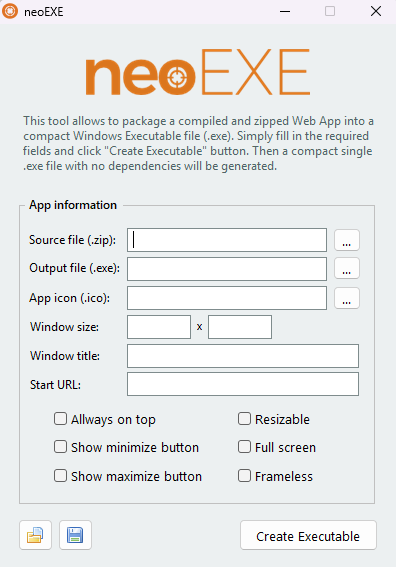
- Source file (.zip): For local apps, select a zipped folder containing your web app files. Leave this field empty if you’re using the StartURL option.
- Output file (.exe): Choose where to save the executable and give it a name.
- App icon (.ico): Add a custom icon to personalize your app.
- Window size: Specify the width and height for the application window.
- Window title & Start URL: Enter a title for your app and, if your app is hosted online, provide its URL in the StartURL field.
- Optional settings: Check or uncheck options like “Always on top,” “Resizable,” “Fullscreen,” “Show minimize/maximize buttons,” or “Frameless” to configure the app's behavior.
- Create Executable: Click the button, and neoEXE will generate your standalone .exe in seconds.
Created with the Personal Edition of HelpNDoc: Single source CHM, PDF, DOC and HTML Help creation